



Mintlify migration guide from ReadMe or Docusaurus
Migrate your docs to Mintlify with ease. This step-by-step guide covers setup, docs.json configuration, AI assistant, API reference, changelogs, deployment, and common pitfalls to avoid.

Choosing a home for your docs is one of the toughest early calls for any team. You want a system that’s flexible, easy to maintain, and doesn’t slow you down as your product scales. On top of that, you also want something that:
- Let's you customize without friction
- Has a simple learning curve
- Comes with built-in AI features, and
- Stays easy to manage long-term.
That's the problem Mintlify solves. It's Git-based, your content lives in Markdown + MDX, and you get modern capabilities like AI search, OpenAPI support, changelogs, and even LLM-ready indexing out of the box. For a hands-on build of that stack, see how to build AI-ready API documentation with OpenAPI and Mintlify.
But migrating docs is a challenging process. We’ve already written an in-depth guide on API documentation migration that covers the necessary housekeeping tasks before any migration. This follow-up guide walks you step-by-step through setting up or migrating your docs to Mintlify. You’ll learn how to:
- Start fresh or migrate from systems like ReadMe, GitBook, or Docusaurus
- Structure your docs with both conceptual guides and API reference
- Configure Mintlify’s AI features for discoverability
- And avoid common migration pitfalls.
Let’s dive in!
TL;DR
- Create a Mintlify account and connect your GitHub repository
- Set up local editing with the Mintlify CLI for live previews
- Configure site structure and navigation in
docs.json - Organize content into conceptual guides and API references
- Use MDX components (callouts, cards, steps, accordions, code groups) for a better reader experience
- Enable AI Assistant and configure
llms-full.txtfor LLM indexing - Add a changelog using the
<Update />component - Deploy automatically via GitHub pushes, add a custom domain, and monitor analytics
- Watch out for pitfalls, such as broken links,
.mdxextension errors, incorrect OpenAPI references, missingllms-full.txt, and image import issues
Sign up, connect to GitHub, and create your docs repository and portal
Create a Mintlify account If this is your first time using Mintlify, you’ll need to start by creating an account. The setup assumes you already have a GitHub account, since Mintlify runs on a Git-based workflow. If you don’t, pause here and create one first.
Step 1a
Follow this dashboard creation reference to sign up for Mintlify. You’ll be prompted to choose a sign-in method.

I use a Google account, but with either option, you’d need to wait for verification and follow the instructions in your email to create your organization/dashboard.
Step 1b
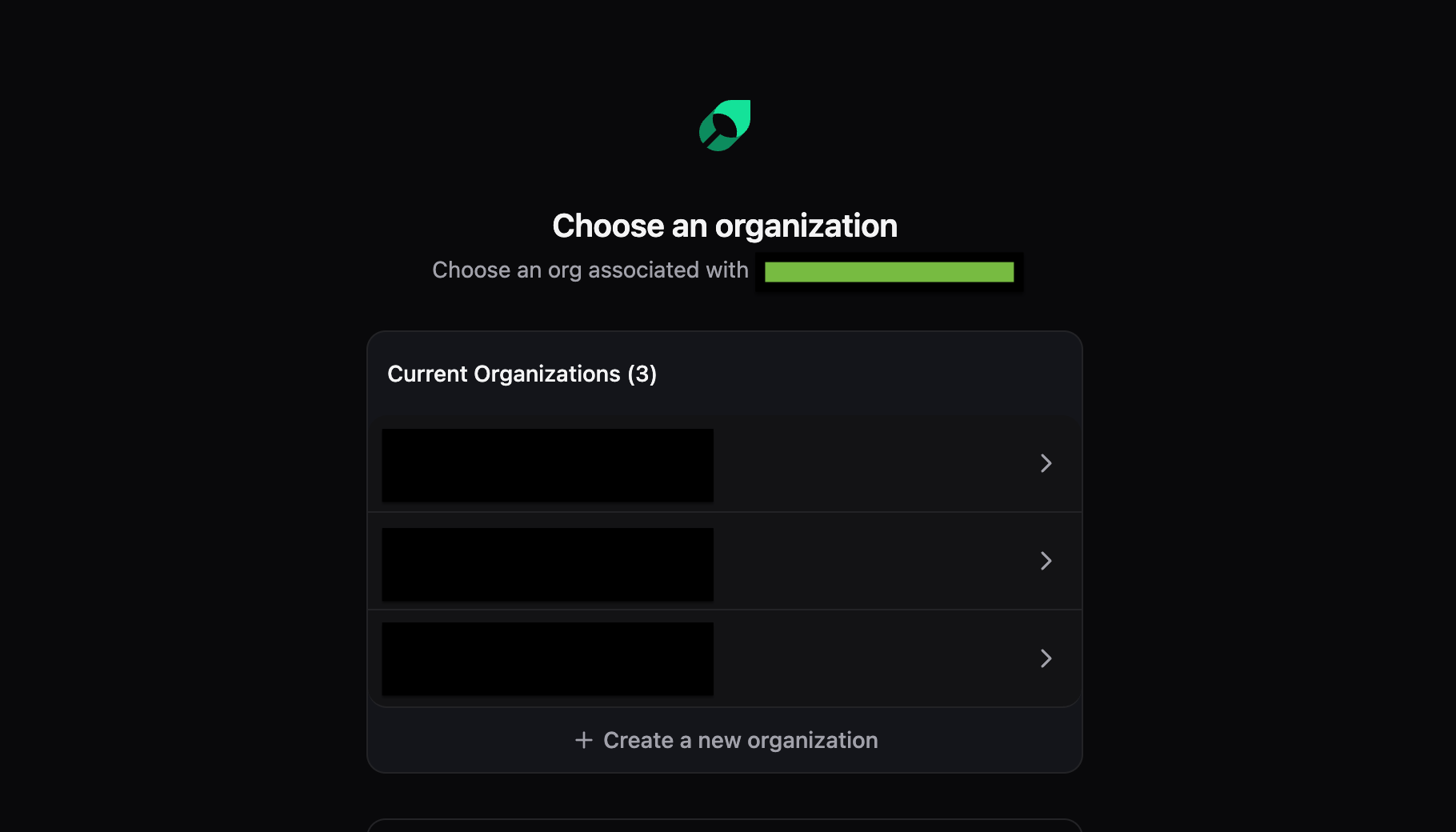
Next, click on "Create a new organization."
Step 1c
Add organization name:

Step 1d
It'd take you to this new page, as shown, click on the dropdown in option one:

At this point, pause and create a GitHub repository for your project; this is where the project details will reside.
Step 1e
Next, fill in the required details: your GitHub username and the name of your already created repository. Then, click “Continue.”

On the "Make an update" card, copy out the "clone repo" URL that we will need in the next step.
Step 1f
Then, click on "Go to dashboard":

Congratulations, you now have a docs portal!

Let’s set up our local environment.
Set up local editing with Mintlify CLI
Mintlify provides a command-line interface (CLI) that makes it easy to work on your documentation in a local environment. Running your docs locally gives you a live preview, helps you test changes safely before pushing them to GitHub, and keeps everything aligned with a standard developer workflow. It’s useful when making larger edits, adjusting navigation in docs.json, or experimenting with custom MDX components.
Step 2a
Install Node.js (If You Haven't Already) Head to nodejs.org and grab the LTS version.
Step 2b
Install the Mintlify CLI
##npm
npm install -g mintlify

or

 ##yarn
 yarn global add mintlify
Step 2c
Clone the repo Now let's get the repo URL we copied earlier. In your terminal, run:
git clone https://github.com/the-queen-herself/yofi
This clones the project we created via the dashboard, which includes the Mintlify starter kit.
Step 2d
Fire up your local server Navigate to your docs directory and start the development server:
cd starter
mint dev
You should see something like:
✓ preview ready
local   → http://localhost:3000
Understand the file structure
Now, let's take a tour of what you've just received:

Essential files
- docs.json: This file was previously called mint.json before the February 2025 update. It’s the control center of your Mintlify project. Everything related to your site configuration is located here, including navigation, colors, logos, metadata, and general settings. If something feels off in your docs site, this is usually the first file to check.
- index.mdx: This is your homepage. It’s the landing page most readers will see first, so it should be customized and renamed as you like.
Optional but useful
- quickstart.mdx: The standard “getting started” guide. It’s often the first stop for developers, so keep it simple and actionable. You can modify it according to your use case.
- api-reference/: This folder holds your API documentation. You can generate it directly from an OpenAPI file or write MDX pages for each endpoint. You can safely remove it if your product does not have an API.
- snippets/: This folder is used to create reusable content that can be imported and used across multiple pages in your documentation.
- ai-tools/: Mintlify recently added this folder to support their AI features around August 2025. It’s meant for configurations and tools related to AI discoverability and indexing. Think of it as the prep space for making your docs ready for Mintlify’s Assistant and other AI-powered workflows.
- images/: This is where you store images used across your documentation.
- logo/: This folder is intended for brand assets, such as your company or product logo. The path you set in docs.json usually points here.
- README.md: Standard repo readme. This one isn’t published as part of your docs site, but it helps contributors understand the project structure and setup instructions.
Online editing options
Once your docs are connected to GitHub, you don’t always need to work locally. Mintlify gives you lightweight ways to make changes directly in the cloud. You can open your repository in GitHub.dev for quick edits through a browser-based IDE, or use the Mintlify dashboard editor to update content right inside the platform, or use mobile editing.
GitHub.dev
Press . on any GitHub repo page to open a lightweight, VS Code–style editor in the browser. This makes it easy to edit documentation without leaving the GitHub interface. You get to;
- Edit multiple files at once
- Use VS Code extensions
- Commit changes directly
- Preview your changes in real-time
Mintlify's web editor
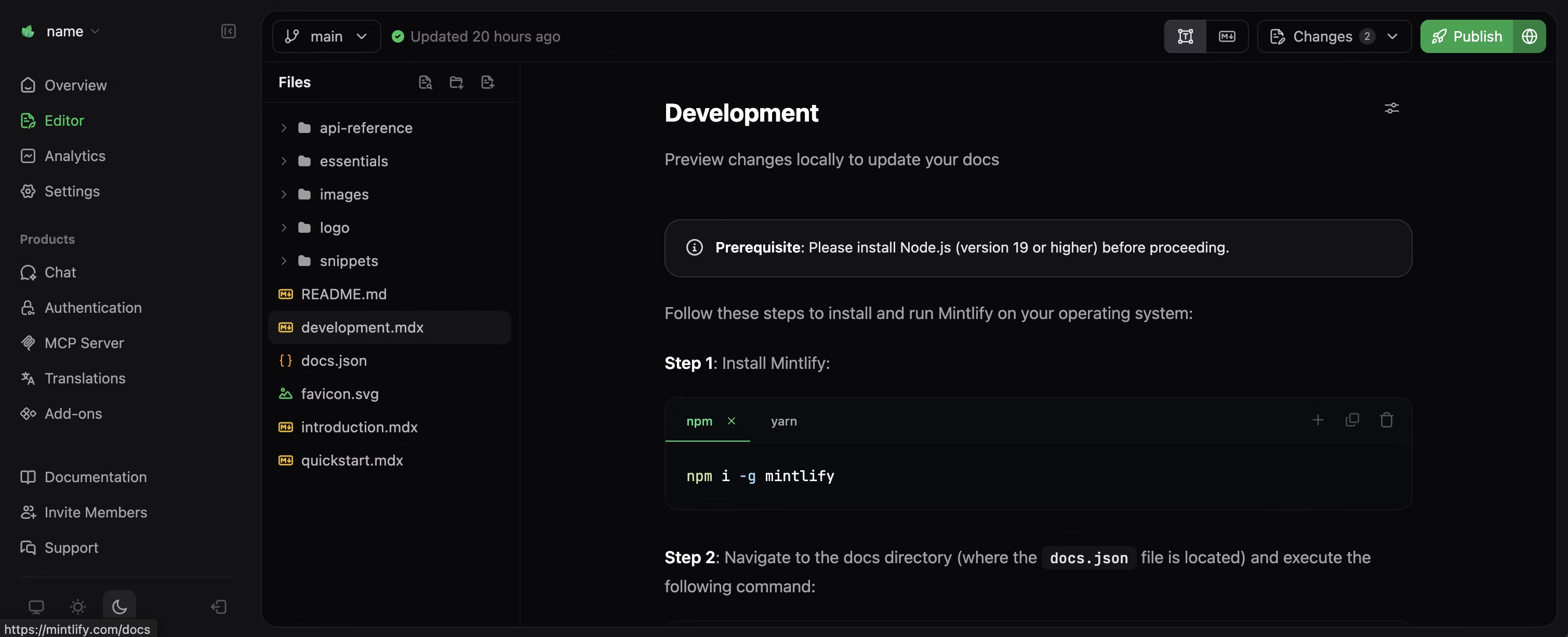
From your Mintlify dashboard, click "Edit" next to any page, and you will be directed to an online editor. It's clean, simple, and perfect for content-focused edits. The preview pane shows you exactly how your changes will look, and you can choose between visual and markdown modes.
Mobile editing
You can even make edits from your phone or tablet for urgent changes. While not ideal for large updates, it’s handy for correcting typos or updating a line of text on the go.
Customize site structure using docs.json
The docs.json file is where you configure your site. This is where you shape how your documentation looks and feels. From navigation menus to brand colors, logos, and even anchors, everything is controlled here. It's essentially the blueprint that tells Mintlify how to assemble your docs into a complete site.
Inside docs.json, you’ll typically configure:
Branding: project title, name, logos, and theme colors.
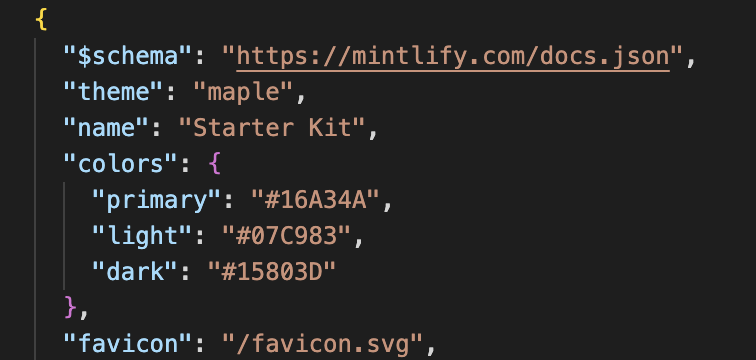
- Theme: A quick way to set the overall style of your site. Mintlify ships with predefined themes. Mint is the default, but you can set another theme.
- Name: The title of your site or project. This is what shows up in the browser tab.
- Colors: Defines your site’s primary, light, and dark accents. For example, primary sets the brand highlight color, while light and dark are used for alternate mode.
- Favicon: The small icon that appears on the browser tab for your site.
Navigation: how pages and folders show up in the site.
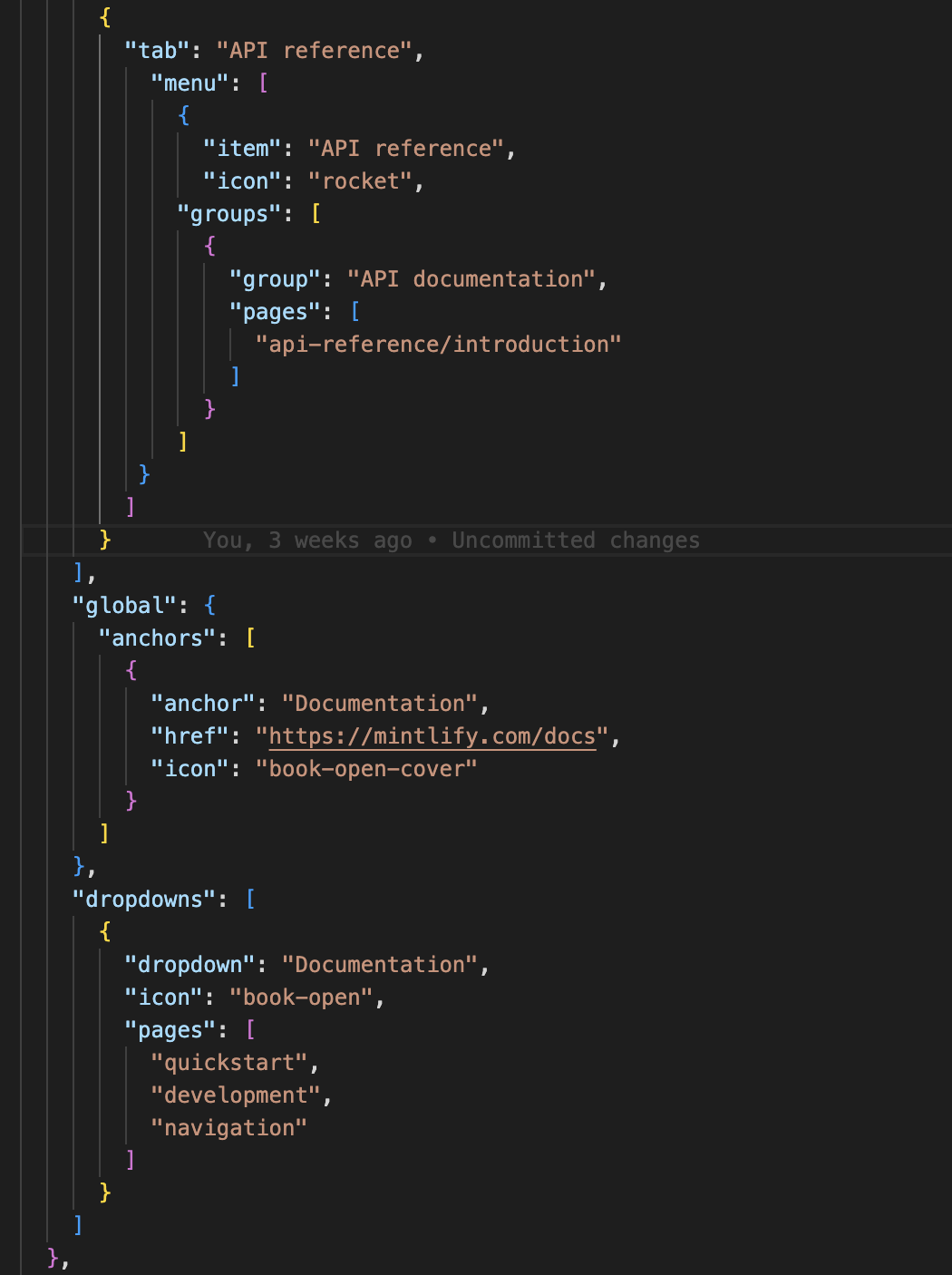
- Tabs: These are the top-level sections of your site, like “Guides” or “API Reference.” Tabs can be grouped and hold pages, or even carry menus if you want a deeper structure.
- Menu (inside a Tab): Lets you add dropdown items under a tab, pointing to grouped pages. Useful when a single tab covers a lot of ground, like APIs split into “Core endpoints” and “SDKs.”
- Anchors: Fixed links in your sidebar that remain visible and provide readers with quick access. Anchors can link to internal docs or external resources like a blog, support portal, or Slack group.
- Global Anchors: These sit at the very top level, good for external links you want always accessible.
- Dropdowns: Expandable navigation items that sit in the sidebar. They let you neatly collapse multiple related pages under one heading without cluttering the view.
Organize your content: conceptual + API docs
Typically, users of your docs have varying needs. Some want to understand the “why” and “how,” while others just need the exact request format for an endpoint. Mintlify gives you a structure that enables both your conceptual guides and API reference to coexist on a single doc site.
Note: If your migration includes moving API documentation, the sequence and structural decisions that apply specifically to API doc migrations are covered in how to migrate your API documentation
Conceptual docs
These cover the narrative side of your product, such as getting started guides, FAQs, tutorials, architecture explanations, or in-depth feature discussions. A common folder layout looks like:
docs/
├── getting-started/
│   ├── introduction.mdx
│   ├── installation.mdx
│   └── personalization.mdx
├── guides/
│   ├── authentication.mdx
│   ├── best-practices.mdx
│   └── troubleshooting.mdx
└── concepts/
    ├── architecture.mdx
    └── glossary.mdx
API reference
This is where the endpoint definitions live. Mintlify supports:
OpenAPI imports (openapi.yaml or openapi.json) that auto-generate reference pages. For example:
{
  "api": {
    "baseUrl": "https://api.mintlify.com",
    "auth": {
      "method": "bearer"
    }
  },
  "openapi": "/api-reference/openapi.json"
}
Manual MDX pages if you want to add richer explanations, need more control, or callout components alongside endpoints.
---
title: "Get User Profile"
api: "GET https://api.mintlify.com/users/{id}"
---

Retrieve detailed information about a specific user.

## Parameters

<ParamField path="id" type="string" required>
  The unique identifier for the user
</ParamField>

## Response

<ResponseField name="user" type="object">
  <Expandable title="Toggle object">
    <ResponseField name="id" type="string">
      User's unique identifier
    </ResponseField>
    <ResponseField name="name" type="string">
      User's display name
    </ResponseField>
  </Expandable>
</ResponseField>
Both approaches plug directly into your docs site, and you decide how they’re grouped or linked in the sidebar.
MDX components
Mintlify provides components that help you create interactive, visually appealing docs that go beyond basic Markdown, making your docs more engaging and easier to navigate.
Core Mintlify MDX components includes: Callout Boxes
Callouts can be styled as:
<Note>- For general information<Warning>- For important warnings<Info>- For informational content<Tip>- For helpful tips<Check>- For confirmations or checkmarks
Cards
<Card title="Feeding" icon="food" href="/meals/fish">
  This is how you use a card with an icon and a link. Clicking on this card hypotheticals takes you to the fish page.
</Card>
Cards are used to highlight important points and links. They support:
- Custom titles and descriptions
- Icons
- Images at the top
- Action buttons with custom text
- Links (href attribute)
- Toggle for showing/hiding arrow icons
Accordions
<Accordion title="Fruits">
  There are only nine vital fruits.
</Accordion>
A dropdown component to toggle content. Accordions lets you:
- Create collapsible content sections
- Add any content inside
- Use individual
<Accordion>components - Group multiple accordions with
<AccordionGroup>
Steps
<Steps>
  <Step title="First Step">
    You need to complete this step first
  </Step>
  <Step title="Second Step">
    You can do this after step one is completed
  </Step>
</Steps>
Steps are the best way to display a sequential series of actions of events to your users.
Code groups

Code Groups allow you to group multiple code blocks with tab navigation.
See the MDX reference for the full component list.
Enable Mintlify’s AI assistant + create llms-full.txt
The assistant answers questions about your documentation through natural language queries. It uses agentic RAG (retrieval-augmented generation) powered by Claude Sonnet 4. When users ask questions, the assistant:
- Searches and retrieves relevant content from your documentation to provide accurate answers
- Cites sources and provides navigable links to take users directly to referenced pages
- Generates copyable code examples to help users implement solutions from your documentation
- Ask clarifying questions when users need more specific help
The assistant is also fully conversational. Users can:
- Ask vague questions and get clarifying responses
- Dig deeper into specific use cases
- Get instant explanations of code snippets
- Have the AI suggest relevant pages for further reading
You can also "Ask AI" directly from code blocks to get instant explanations of specific snippets.
Configuring the assistant
The assistant is enabled by default for Pro and Custom plans. You can manage it from your Mintlify dashboard, including enabling or disabling it, configuring response handling, and setting a spend limit.
Assistant status
Toggle the assistant status to enable or disable it for your documentation site.
Assistant deflection
Enable the assistant to redirect unanswered questions to your support team. Provide an email address that the assistant will offer to users when it cannot answer their questions.
Create and configure llms-full.txt
To improve how large language models (LLMs) read and use your docs, Mintlify uses the llms-full.txt file which is an industry standard that helps LLMs index content more efficiently, similar to how a sitemap helps search engines.
Think of it as an instruction sheet for AI crawlers. It tells them exactly what content to include (or exclude) when indexing your site.
Mintlify automatically hosts both llms.txt and llms-full.txt files at the root of your project. These files are automatically generated and require zero maintenance. You can view them by appending /llms.txt or /llms-full.txt to your documentation site's URL.
Create custom llms.txt
If you want to create a custom llms.txt or llms-full.txt file, you simply create the file manually at the root of your project; no special command is needed.
When you create a custom llms.txt file, you have full control over which pages to include or exclude.
- When you add a custom
llms.txtfile to your project root, it completely overrides the automatically generated file. - You manually structure the content in your custom
llms.txtfile, so you decide exactly which pages to include by listing them with their links and descriptions. - Your custom file must have a site title as an H1 heading, but all other content is optional, giving you complete control over what gets indexed.
This means you can selectively include only the pages you want LLMs to access while excluding sensitive, outdated, or irrelevant content from AI indexing.
Example llms-full.txt
# Pages to include
/docs/getting-started
/docs/authentication
/docs/rate-limit
/docs/api-reference

# Excluded content
/docs/internal/notes
/docs/experimental/*
You would have the file structure that includes all your documentation content, organized with clear headings and context:
# Yofi Documentation

## Introduction - Getting Started with Yofi Platform
Welcome to our documentation! This comprehensive guide will help you integrate our API...

### Key Concepts
- Authentication: We use JWT tokens for secure access
- Rate Limiting: 1000 requests per hour for free tier
- Webhooks: Real-time notifications for events

## API Reference - Complete Endpoint Documentation

### Authentication Endpoints
POST /auth/login
Authenticate users and receive access tokens.

Request Body:
{
  "email": "someguy@gmail.com",
  "password": "s4c3ure12a!1-bd"
}
Add changelogs using component
Mintlify uses a very straightforward changelog system.
How it works:
Create a changelog.mdx page in your docs, also update it in your docs.json. Then, in that file, simply use the <Update /> component.
The component is used to create changelog entries with consistent formatting. Here's how it works:
Basic usage:
# Changelog

<Update date="2025-01-10" title="New Authentication Flow">
  Added OAuth 2.0 support for login.
</Update>

<Update date="2025-02-14" title="Improved API Performance">
  Reduced response times by 30%.
</Update>
Key features:
- Label: Creates an anchor link and appears on the left
- Description: Shows below the label (like version numbers)
- Tags: Optional filters for organizing updates
- Content: Supports any MDX content including images, code, and lists
Multiple Update components create a complete changelog with automatic table of contents, RSS feed generation, and optional tag filtering. Each update gets its own anchor link for easy sharing. The component automatically generates RSS feeds and provides navigation through the sidebar table of contents, as explained in the Update component documentation and Changelogs guide.
RSS feeds (Really Simple Syndication) are a way to automatically deliver updates from websites, like blog posts or changelogs, in a standardized XML format. They allow users to subscribe to your content using feed readers (e.g., Feedly) or tools, receiving notifications when you publish new entries without needing to visit your site.
Tags appear as clickable filter buttons, allowing multiple tags to be selected simultaneously. The filters help users find specific types of updates (features, bug fixes, etc.). Tags are optional; without them, the changelog shows a standard table of contents. With tags, you get an interactive filtering system for better navigation.
Deploy and monitor changes
One of Mintlify's best features is seamless deployment. Every push to your connected GitHub branch automatically triggers a build and deploy.
How auto-deploy works
- You push changes to GitHub
- Mintlify detects the changes
- Your site rebuilds automatically
- Changes are live within 2-3 minutes
Setting up a custom domain

If you're ready to move off the default .mintlify.app subdomain:
- In your Mintlify dashboard, go to Settings → Domain
- Add your custom domain (e.g., docs.yofi.com)
- Update your DNS records with the provided CNAME
- Wait for SSL certificate provisioning (usually 5-10 minutes)
Monitoring your documentation

Mintlify provides comprehensive analytics through your dashboard with several key sections:
Overview tab
- Visitors: Unique visitor counts
- Views: Total page views
- Actions: Combined count of API calls, navbar clicks, and CTA button clicks
- Popular Pages: Most-visited pages with view counts
- Referrers: Top traffic sources
Search analytics
- Total queries: Search volume metrics
- Top searches: Most-searched terms
- Low-confidence searches: Queries that may not have returned relevant results
Feedback analytics
- Thumbs up/down ratings: User satisfaction metrics
- Contextual feedback: Detailed user comments and reasons for ratings
- Code snippet feedback: Specific feedback on code examples
AI assistant analytics
The assistant (available on Pro+ plans) provides detailed usage tracking:
- Query volume: Number of assistant messages used
- Usage patterns: User behavior and documentation effectiveness
- Export capabilities: CSV export of queries, responses, and sources for analysis
- Rate limits: 10,000 uses per key per month
Third-party analytics integration
Mintlify supports numerous analytics platforms, including Google Analytics 4, Mixpanel, Amplitude, PostHog, and others. All events use the docs. prefix and track interactions, such as page views, assistant usage, search behavior, and feedback.
Exporting analytics
You can export your analytics data to CSV directly from the dashboard. This is useful for monthly reports or identifying trends over time.
Common migration pitfalls to avoid
After helping teams migrate to Mintlify many times, here are the most common mistakes and how to avoid them.
Missing to update navigation
The most common issue is forgetting to update navigation when you add or move files. Your docs.json navigation must match your actual file structure exactly. If you have guides/getting-started.mdx, reference it as "guides/getting-started" in navigation.
Missing .mdx extensions
Always use .mdx for pages; plain .md would not render components; but when referencing them in navigation or links, you drop the .mdx extension.
<!-- Wrong -->
\[See our guide\](guides/setup.mdx)

<!-- Right -->
\[See our guide\](/guides/setup)
OpenAPI file not referenced in docs.json
Reference your OpenAPI file correctly in docs.json, or API sections won't generate.
{
  "openapi": "/api/to/your-api-spec.yaml"
}
No llms-full.txt = poor AI coverage
If your AI Assistant seems uninformed about your content, check that your pages aren't accidentally marked as hidden and that your llms-full.txt file is being generated properly, especially if you're running a custom llms-full.txt build.
Image import issues
Images should be in the /images folder and referenced with absolute paths:
<!-- Wrong -->
!\[Logo\](../images/logo.png)

<!-- Right -->
!\[Logo\](/images/logo.png)
Broken internal links
These is usually tasking to deal with and Common causes include;
- File path changes: When you rename or move files, URLs change
- Invalid relative links: Use root-relative paths like /page instead of ../page
- Missing files: Referenced pages that don't exist
- Case sensitivity: Ensure proper capitalization in links
However, Mintilify makes it easy to find broken links. Use the CLI to identify broken links in your documentation:
mint broken-links
This command scans your docs and identifies any relative links that don't exist.
You should also fix broken links by setting up redirects in your docs.json file to handle moved or renamed pages:
"redirects": [
  {
    "source": "/old/path",
    "destination": "/new/path"
  }
Also, when linking between pages, use absolute paths without the .mdx extension:
<!-- Wrong -->
\[API Guide\](./api-reference/introduction.mdx)

<!-- Right -->
\[API Guide\](/api-reference/introduction)
Closing thoughts
One of Mintlify's strengths is that it scales with your documentation. You can start with a simple documentation site, then gradually add API references, custom components, interactive content, and more advanced workflows as your product and developer needs evolve.
The migration itself is only the beginning. The real goal is improving the developer experience after the migration is complete. The documentation metrics guide covers how teams measure that impact through onboarding efficiency, support reduction, documentation health, and developer success.
Documentation is never a one-time project. As products evolve, documentation needs to evolve with them. Mintlify's Git-based workflow makes that process easier by allowing teams to update, review, and publish changes using the same workflows they already use for code.
If you're planning a migration and want help designing the structure, moving content, or improving the overall developer experience, Hackmamba is a technical documentation agency and a Mintlify partner that helps SaaS and devtool companies build and maintain developer documentation.
We've supported documentation migrations for teams like Celo, where we restructured more than 250 pages into six audience-focused documentation sections, reducing the time developers needed to get up and running with the platform.